
What Are the Bloody ARIA?

Why Do We Need Them? How Do They Work? And Do We Even Need to Bother?
If you’ve worked with accessibility for more than five minutes, you’ve seen ARIA attributes.
role="button"
aria-label="Close"
aria-expanded="true"
They appear everywhere.
And if we’re honest, most developers add them in one of three situations:
A linter complains.
A tool flags something.
A blog said “just add aria-label”.
But what are ARIA attributes actually for?
And do we really need them?
Let’s untangle this properly.
First: What Is ARIA?
ARIA stands for Accessible Rich Internet Applications.
It’s a specification that defines:
- roles
- states
- properties
…that help assistive technologies (like screen readers) understand complex UI components.
In simple terms:
ARIA is a way to describe what your custom interface elements actually are and how they behave.
Because modern web apps don’t always use native HTML elements the way browsers originally expected.
Why ARIA Exists in the First Place
HTML already has built-in semantics:
- <button> is a button
- <nav> is navigation
- <input type="checkbox"> is a checkbox
These are inherently accessible — if used correctly.
The problem started when developers began building:
- custom dropdowns
- JavaScript tabs
- modal dialogs
- accordions
- interactive widgets
- SPA-heavy components
And instead of using semantic HTML, we used:
<div onclick="doSomething()">Visually? Works.
For assistive tech? It’s just a div.
ARIA was introduced to bridge that gap.
How ARIA Works (Without the Spec Headache)
ARIA does three main things:
1. Roles
Roles tell assistive technologies what something is.
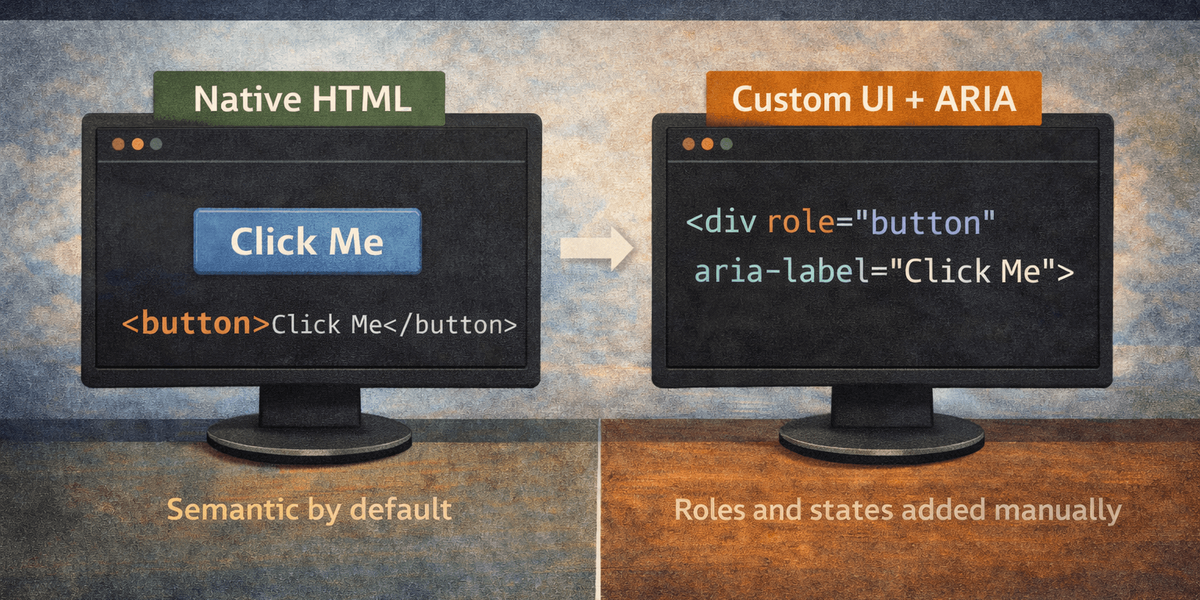
<div role="button">This tells a screen reader: “Treat this like a button.”
But - and this is important - it does not make it behave like a button.
You still need:
- keyboard support
- focus handling
- click events
- correct states
ARIA changes meaning, not behaviour.
2. States & Properties
These describe dynamic changes.
Example:
<button aria-expanded="false">When the button opens a dropdown, you update it to:
aria-expanded="true"This allows screen reader users to understand the UI state.
Without it, they’re guessing.
3.Relationships
ARIA can define relationships between elements:
aria-labelledby
aria-describedby
aria-controls
These help connect components logically.
For example:
- A modal labelled by its heading
- A form input described by error text
It creates structure where visual layout alone isn’t enough.
The Important Question: Do We Even Need ARIA?
Here’s the honest answer:
Yes — but less than you think.
There’s a widely repeated accessibility principle:
“The first rule of ARIA is: don’t use ARIA.”
That sounds extreme, but what it really means is:
If native HTML can do the job, use that instead.
For example:
Instead of:
<div role="button">Just use:
<button>Native elements:
- are already keyboard accessible
- already have correct semantics
- already communicate state properly
ARIA should enhance semantics - not replace them.
When ARIA Is Necessary
You need ARIA when:
- You’re building complex components (tabs, menus, accordions)
- You’re managing dynamic states
- You’re simulating native behaviour in custom UI
- You’re building interactive patterns that HTML alone doesn’t cover
Modern frontend frameworks often require ARIA to make custom components accessible.
If you build a modal from scratch, you absolutely need:
- role="dialog"
- aria-modal="true"
- correct labelling
- focus management
Without ARIA, assistive technologies won’t understand the context change.
When ARIA Becomes Dangerous
ARIA can also make things worse.
Common mistakes:
❌ Adding ARIA to fix design shortcuts
Developers sometimes patch non-semantic HTML with ARIA instead of using proper elements.
That’s like adding subtitles to a silent movie instead of turning on the sound.
❌ Incorrect roles
Using the wrong ARIA role can confuse screen readers more than leaving it alone.
❌ Forgetting keyboard behaviour
ARIA does not automatically:
- add keyboard navigation
- add focus management
- add expected behaviour
It only changes what assistive technologies think is happening.
If behaviour doesn’t match the role, the experience becomes inconsistent and frustrating.
Why ARIA Feels Complicated
Because it lives at the intersection of:
- browser rendering
- accessibility APIs
- assistive technologies
- dynamic JavaScript
- semantics
- user expectations
It’s not “hard” — it’s layered.
And it’s often implemented without understanding those layers.
A Real Example
Let’s say you build a custom dropdown:
- It visually opens and closes
- It responds to mouse clicks
- It looks polished
But:
- It doesn’t respond to arrow keys
- It doesn’t expose its expanded state
- It isn’t labelled properly
For sighted mouse users, it works.
For keyboard or screen reader users, it’s confusing.
Adding:
- aria-expanded
- role="menu"
- aria-controls
- keyboard interaction logic
…transforms it from “interactive visually” to “interactive accessibly”.
That’s the difference ARIA makes.
So… Do You Need to Bother?
If your site uses:
- custom UI components
- JavaScript-heavy frameworks
- modals
- interactive widgets
- dynamic states
Yes.
You need to understand ARIA.
If your site is:
- mostly static
- built with semantic HTML
- simple forms and links
You probably need very little ARIA.
The problem isn’t ARIA itself.
The problem is:
- not knowing when to use it
- using it blindly
- assuming it fixes everything
The Balanced View
ARIA is not magic.
It is not a compliance checkbox.
It is not a shortcut.
It is a vocabulary - one that helps assistive technologies understand what your interface is doing.
Used properly, it enables rich, accessible applications.
Used poorly, it creates confusion that automated tools may not even detect.
Final Thought
ARIA exists because the modern web stopped being simple.
If you build complex interfaces, you inherit complexity - including accessibility complexity.
You don’t need to fear ARIA.
But you do need to respect it.
Because when assistive technology relies on your semantics to function - getting them wrong isn’t invisible.
It’s disorienting.
And most users won’t tell you. They’ll just leave.